What does a child learn?
About trying, investigating mistakes and explaining how a solution works.
Read about learning and development
LEARN TO CODE · AGES 8 TO 14
Pliro is a programming language for children. Using readable words and visual blocks, your child makes games, drawings and music. Start with one small project and build from there.
No payment card needed. The trial ends automatically. Explore Creator Pro and pricing
FROM AN IDEA TO SOMETHING THAT WORKS
A rule, colour or melody of your own turns an example into something personal. These projects offer a clear first step.
Start with a guessing game. Change the secret number and see which response you get.
Explore the project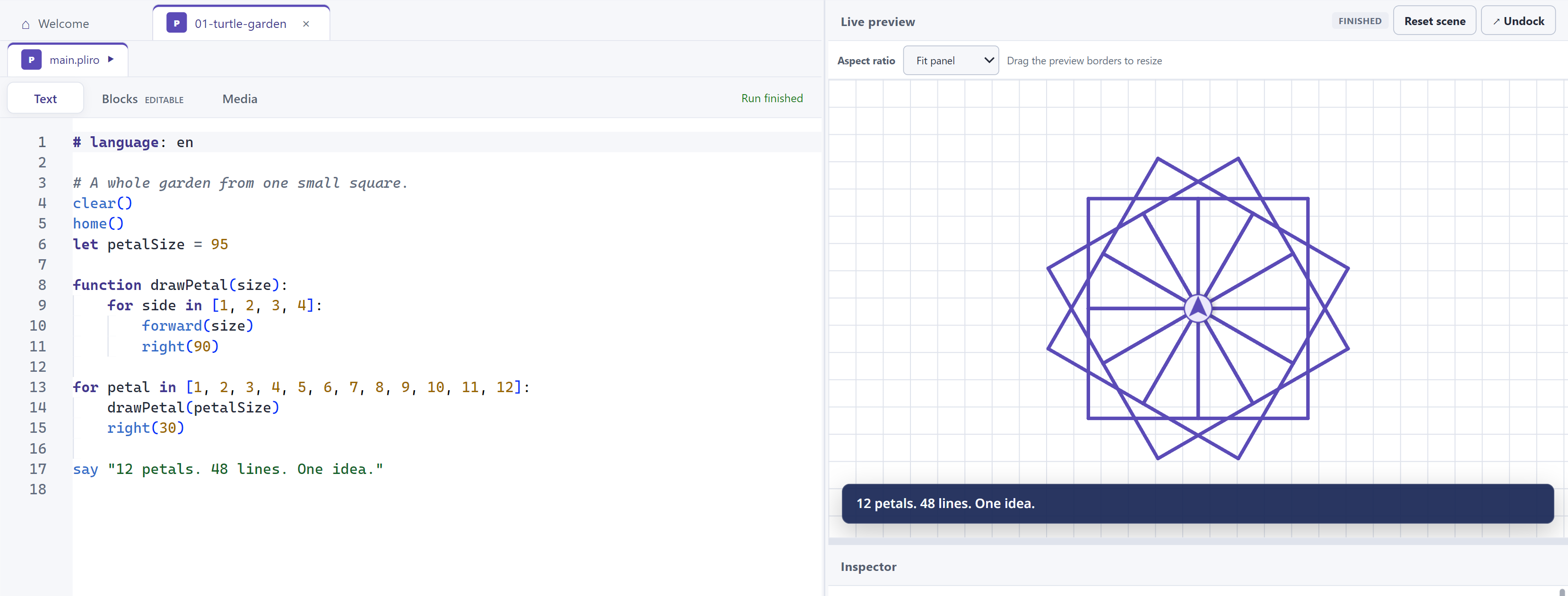
A turtle is a little pen on screen that you move and turn with code. The idea comes from the programming language Logo. Change an angle and discover a new pattern.
Explore the project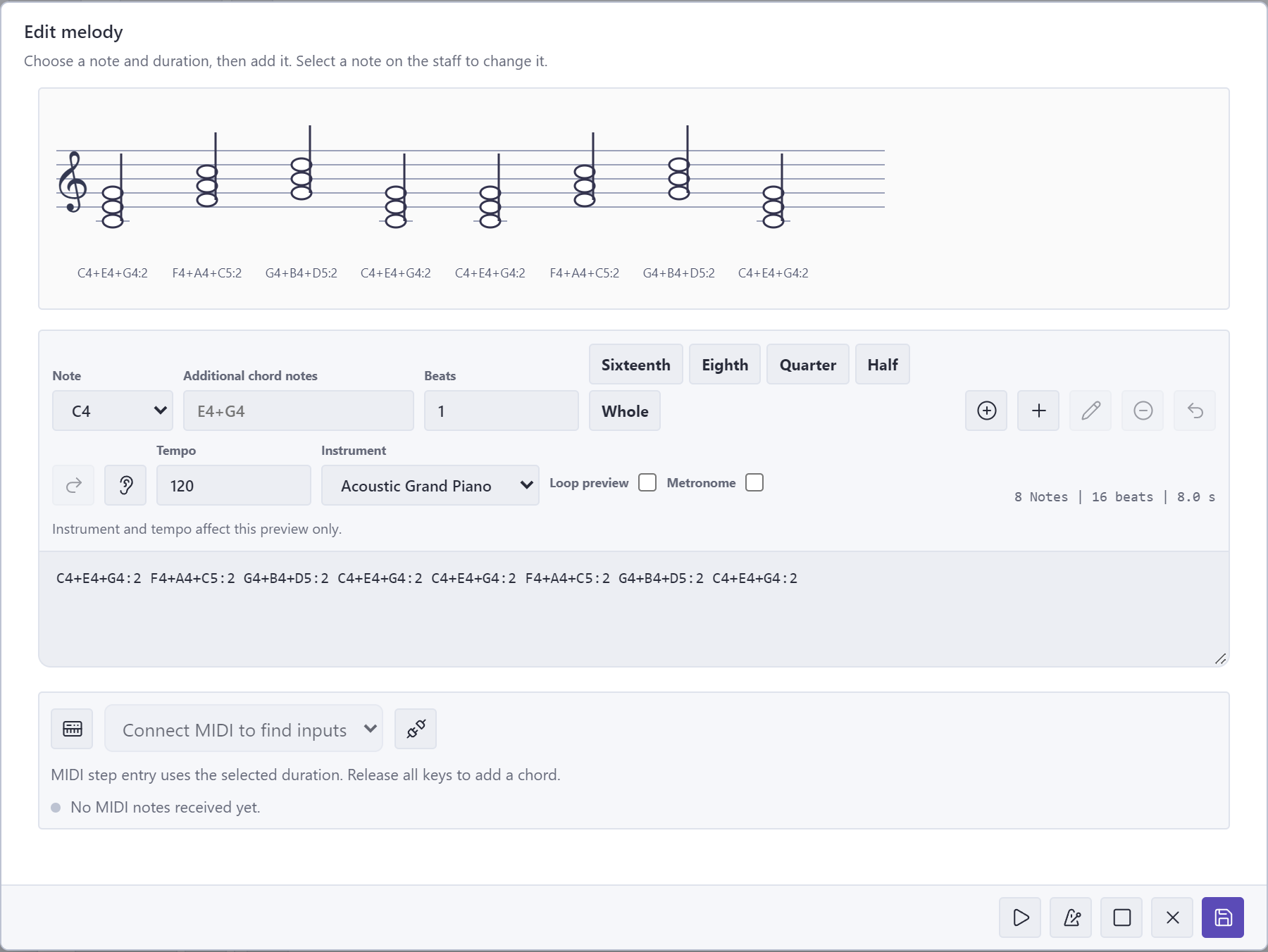
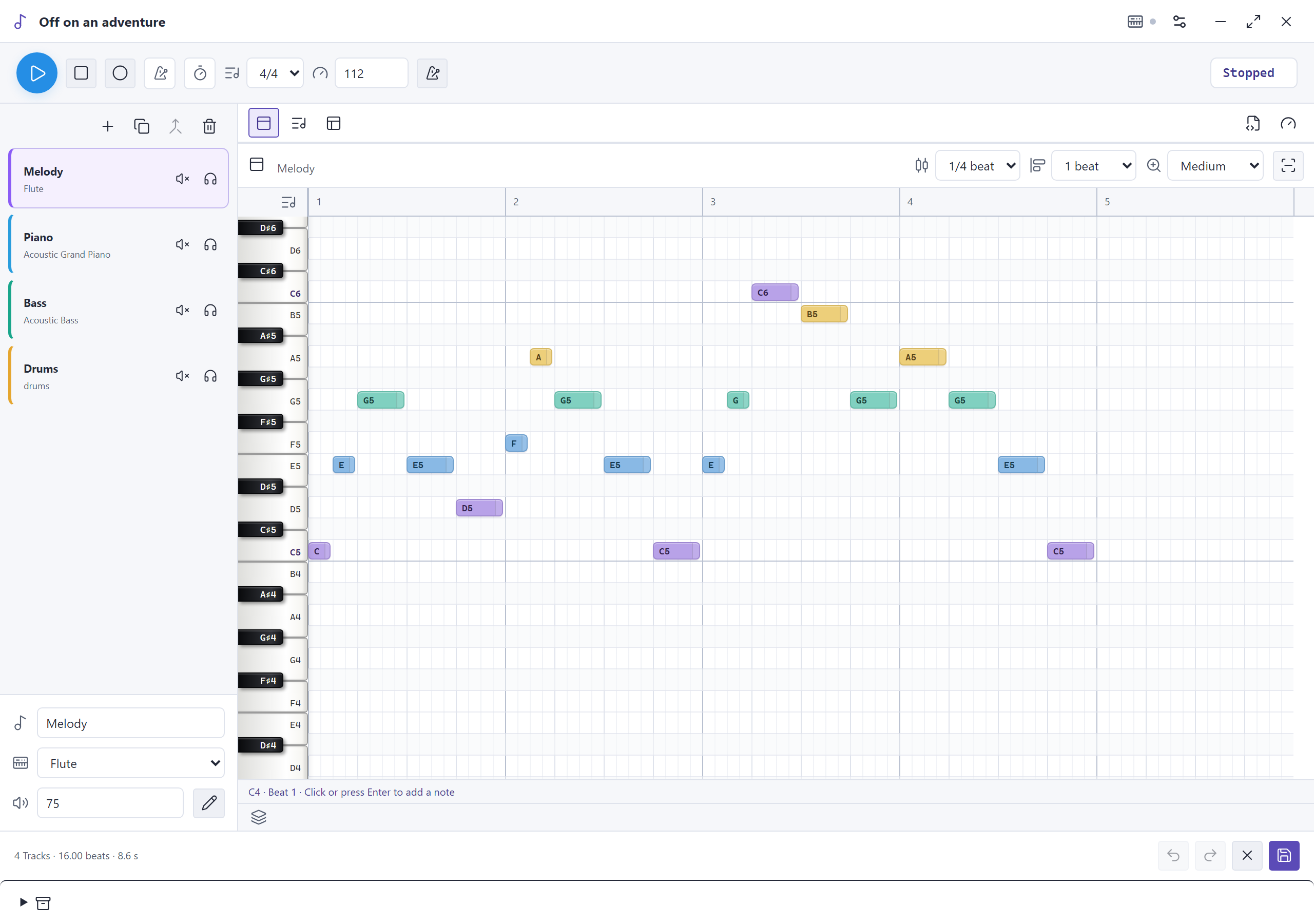
Write a short musical motif in code. You do not need Creator Pro for that.
Explore the projectHOW PLIRO WORKS
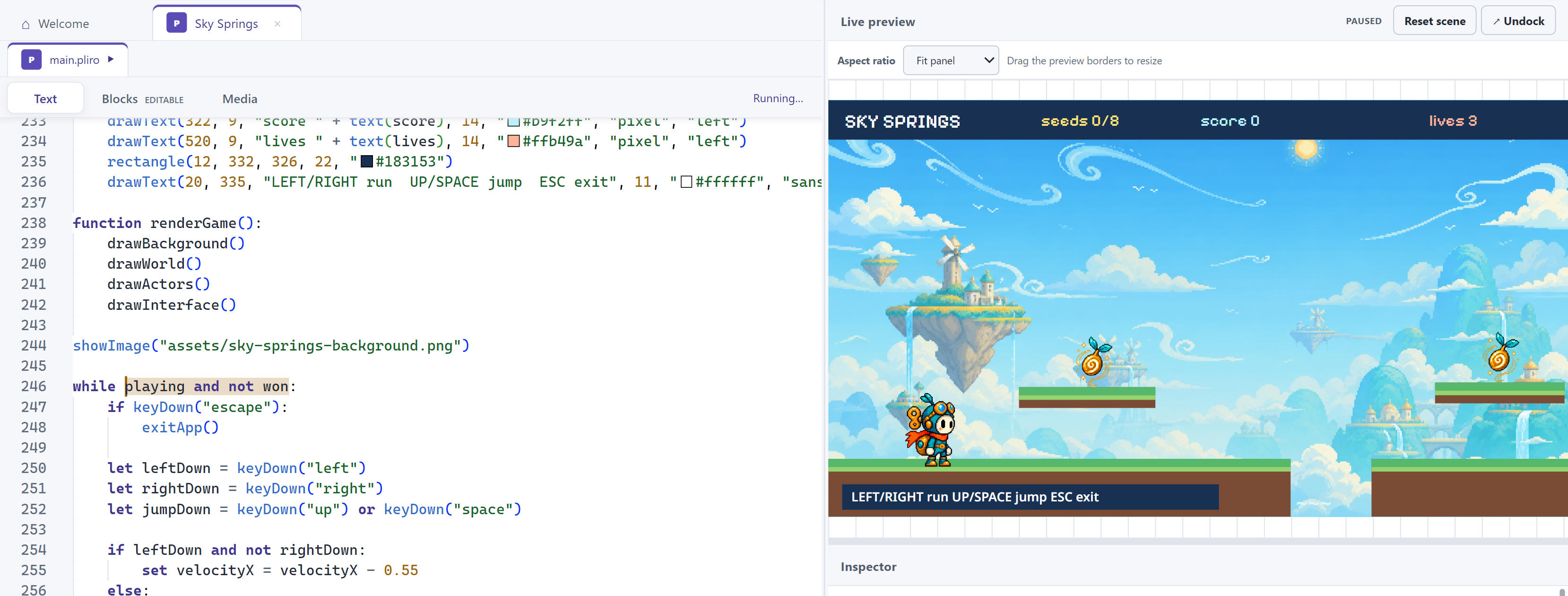
Code is a sequence of instructions. Your child tries, observes and changes things. Text and blocks are two ways of viewing the same program.
What do you want to see on screen?
Edit one value or instruction.
Run it and look for the difference.
Ready to make something
This activity gives you a taste of coding. In the Pliro app, your child can write and change the instructions themselves.
Try in the playgroundHere you change a shape using buttons. In the guided browser project you edit the Pliro code yourself.
Open your first real browser projectCHOOSE WHAT FITS
Start free with Learner. Ready for more? See the monthly Creator Pro price here, then explore every payment option on the Creator Pro page.
FIRST PROJECT · FREE
Open the example, change one value and run it. See exactly what your change does.
Try a project in your browserIn your browser, including on a tablet or phone. A computer and keyboard help with longer code and the desktop tools.
TOGETHER OR ON YOUR OWN
Choose a mission and make something of your own.
Choose your projectFOR PARENTSYou do not need to be a programmer. Watch and ask a question.
Get started at homeFOR SCHOOLSFree teaching materials or a Classroom setup: choose the route for your class.
Explore lessons and ClassroomIF YOU WANT TO KNOW MORE
Read more about coding, STEM and independent thinking, with sources and practical ideas, without promises of proven Pliro learning effects.
About trying, investigating mistakes and explaining how a solution works.
Read about learning and developmentMake your own plan and check what a computer suggests.
Read about STEM and future skillsFrom a prediction and an example to a change of your own.
Explore the teaching approachMADE WITH PLIRO
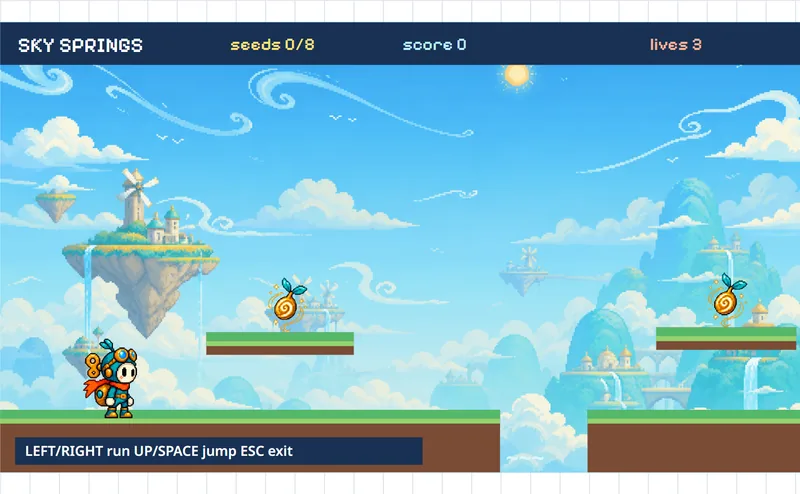
These games were made with Pliro. Have a go, then look at the instructions to see how they work.
Pliro is a coding app with its own programming language: the words and rules used to give a computer instructions. Children can use words or coloured blocks to make drawings, games and other programs.
Pliro is designed mainly for children aged 8–14, but other beginners can enjoy it too. Reading confidence, interest and a little support matter more than an exact age. Start small and see what suits your child.
Pliro Learner is free. It includes coding, games and saving your projects. To start, request a free licence key using an adult’s email address. Creator Pro and Classroom are paid options with extra features; neither is needed to begin.
For most families, choose the Windows download for Windows 10 or 11. If you use Linux, the .deb download is for a 64-bit Intel or AMD computer. It is built for Ubuntu 24.04; Debian 13 or later also needs the required supporting software. Ubuntu 22.04 and Debian 12 are not supported. The Linux download is not a Raspberry Pi installer.
Yes. Pliro uses English instructions such as ‘forward’ and ‘right’. Dutch instructions are also available in the app. Your child chooses the names and text in their own projects.
Yes. Ask what your child wants to make, what they think will happen and what they could change. Start with an example and let them control the computer. You can work things out together.
AI, short for artificial intelligence, can suggest ideas and write code. It can also make mistakes. Your child still needs to decide what to make and check whether it works. Coding gives them a chance to practise those skills.
Coding gives children practice at breaking an idea into smaller steps, making choices and checking their work. These skills can be useful in many parts of life. They do not need to want a career in computing to enjoy it.
With Pliro, your child makes something and discovers what their own choices do. Agree on a small goal, such as drawing a square or changing one game rule. Afterwards, ask them to tell you or draw how they did it. Decide together how long you want to spend on it.
Yes. Free Learner exports standalone apps for your own operating system and Raspberry Pi, with Pliro branding. Creator Pro adds other supported operating systems. The recipient does not need a Pliro licence to use your generated app.
No. Start on a Windows computer or a supported Linux computer. You can try lights and buttons on screen. For projects with real lights and buttons, you will need a Raspberry Pi and the extra parts listed in the project instructions.
A Raspberry Pi has small connection pins, called GPIO pins. With the right parts, a program can use them to switch on a light or check whether a button has been pressed. Follow the project instructions with an adult.
Download Pliro and choose the free Learner edition. Then open an example. Change one number or instruction together and see what happens. If you come across an unfamiliar word, our glossary explains it simply.