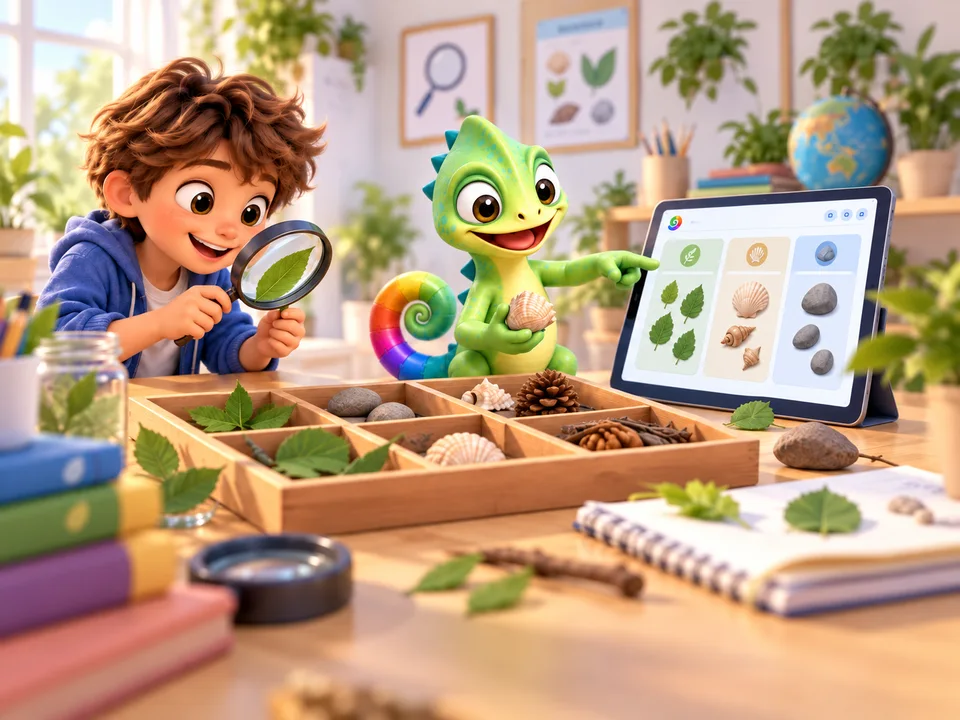
Science
Explore a question
Change one number in a drawing. Predict the result, try it out and explain what you see.
FOR PARENTS, CARERS & GRANDPARENTS
A game with their own characters. A tune they have written. A drawing that moves. Pliro gives your child a way to turn an idea into something they can show you. Start with a small project and see where it takes them.
Start together, for freeWhat can my child practise?The free Learner edition is all you need to get started.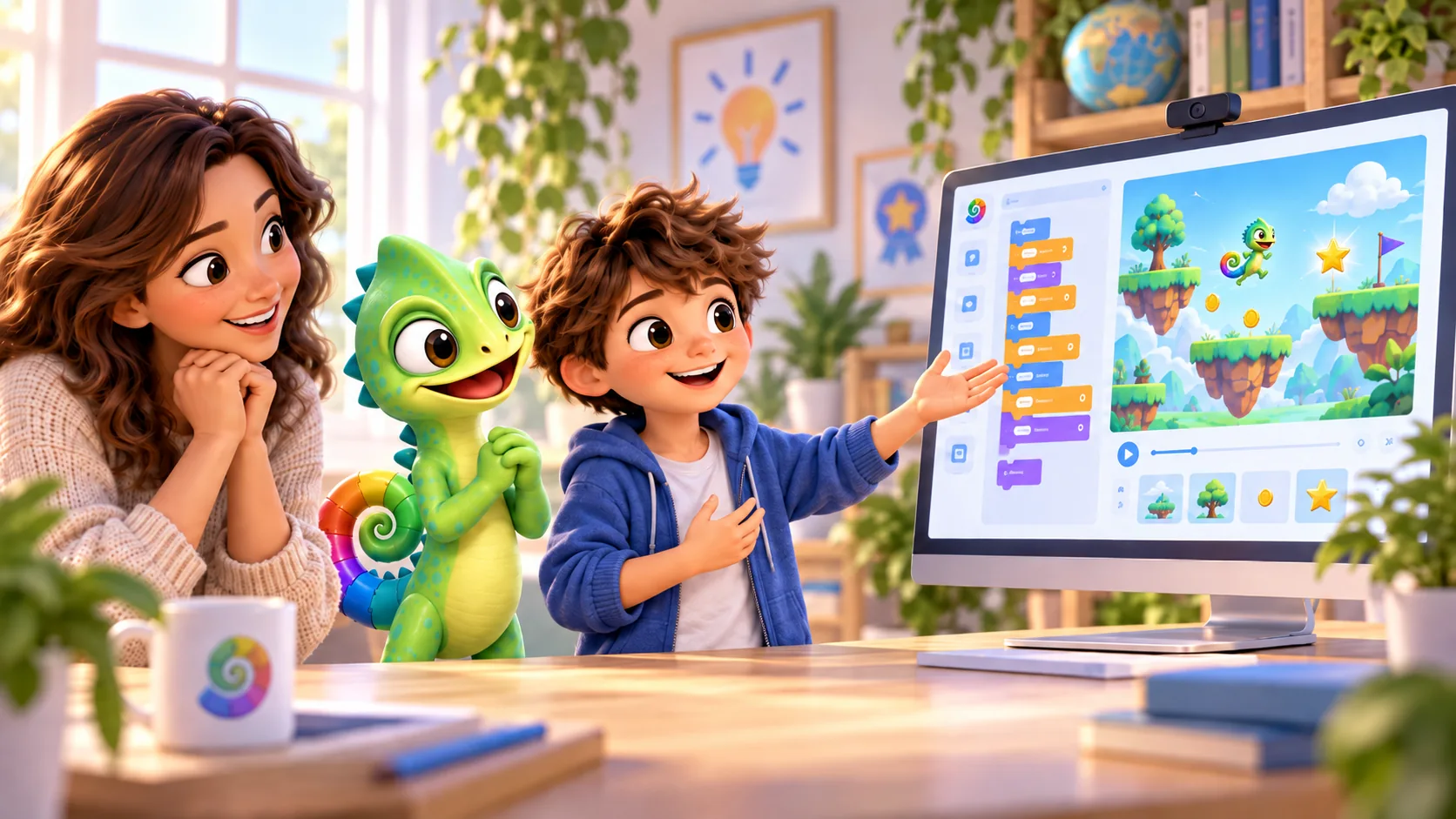
New to coding? You can learn together.
STEM · LEARN BY MAKING
Why does STEM matter for your child? It gives curiosity a practical path: ask a question, try something, measure and improve. A small project of their own makes maths and technology something they can explore.
STEM stands for Science, Technology, Engineering and Mathematics: exploring questions, understanding tools, designing solutions and working with numbers.
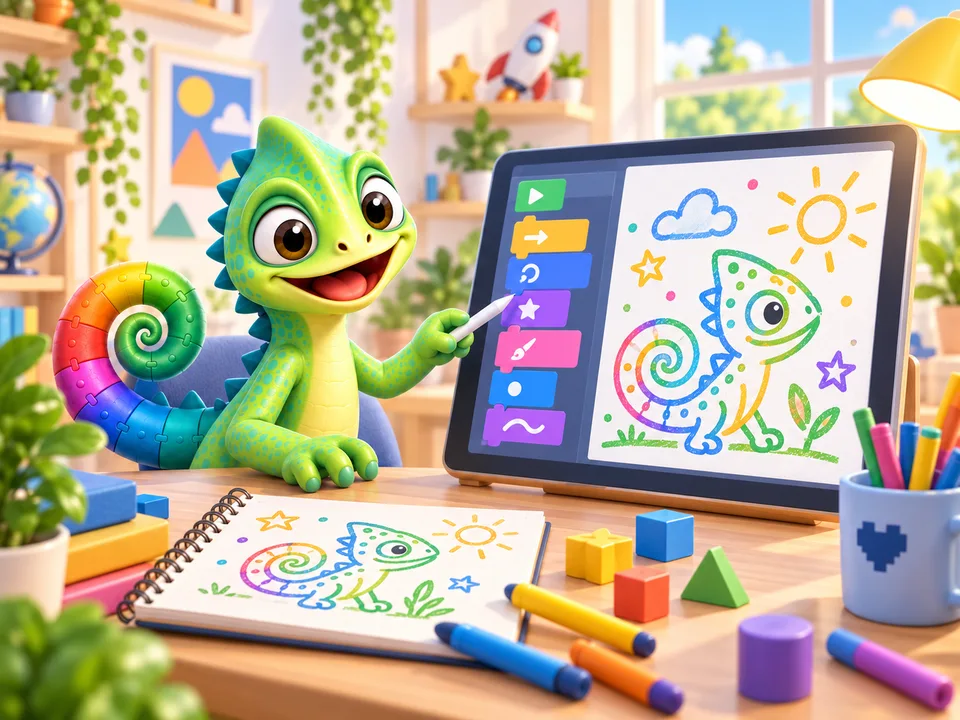
Science
Change one number in a drawing. Predict the result, try it out and explain what you see.
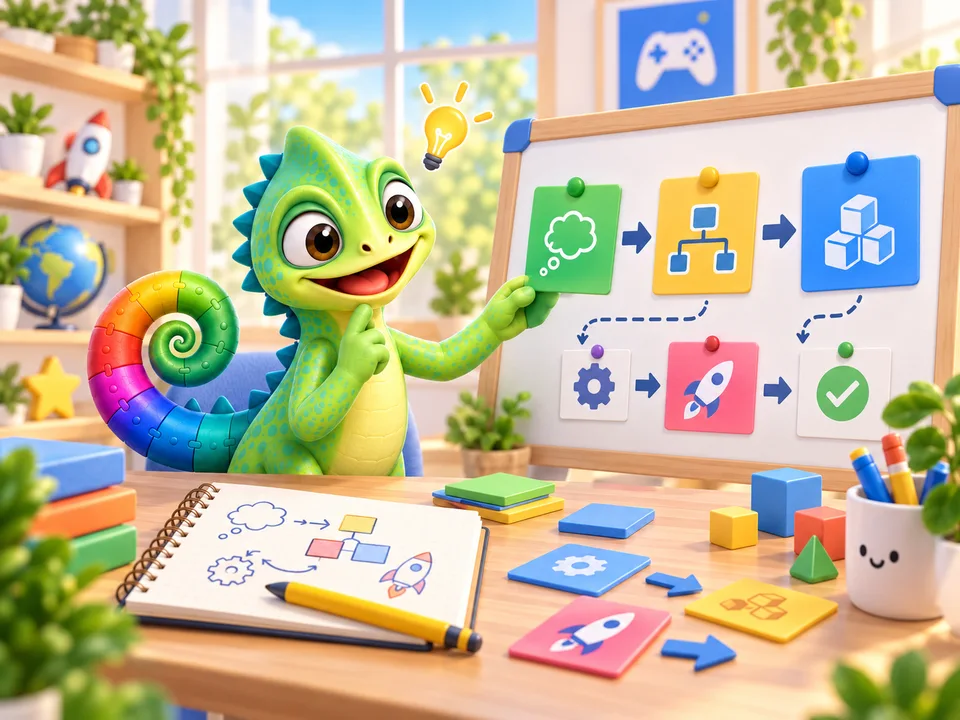
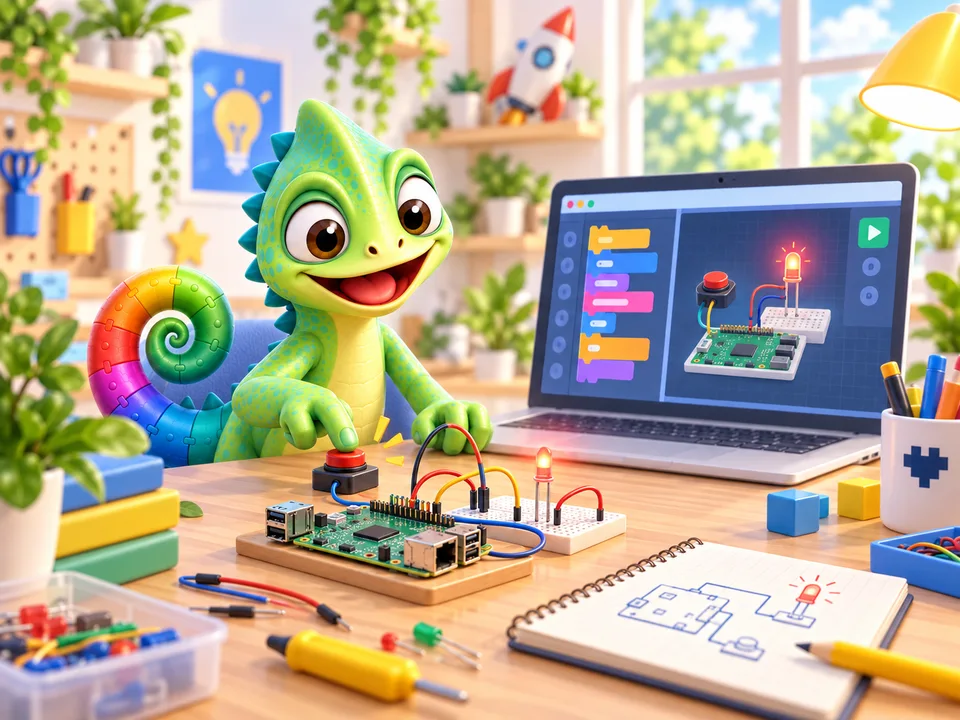
Technology
Give the computer instructions with blocks or text. Find the step that makes your drawing move.
Engineering
Design a route or a game rule, let someone try it and improve one part of your solution.
Mathematics
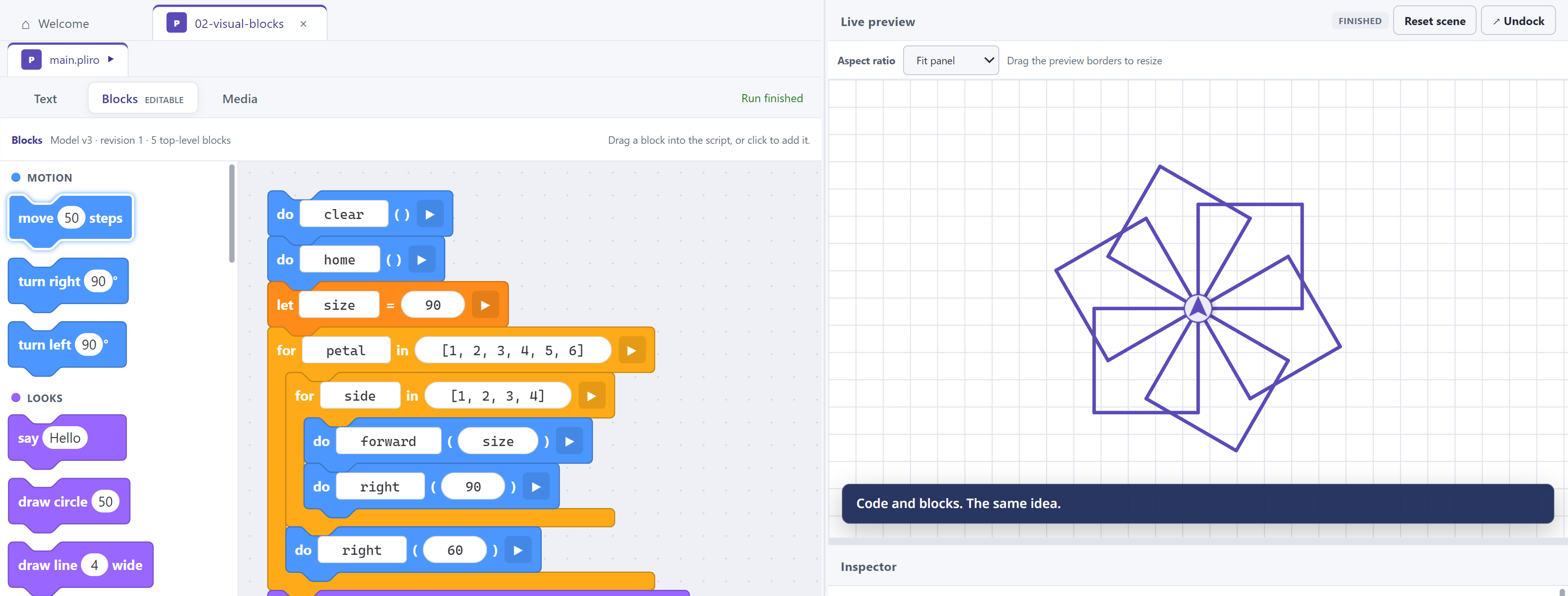
Explore angles, distances and patterns with the turtle. A square needs a turn of 360 / 4 degrees.
TRY IT TOGETHER
From four sides to six: what needs to happen to the turning angle? Ask your child to predict, draw and compare.
These first STEM projects work with free Learner. Physical projects with lights or sensors need a Raspberry Pi and suitable separate components, with adult guidance.
Background: Council for Science and Technology on STEM educationBEHIND EVERY ‘LOOK AT THIS!’
Making something gives children a reason to use numbers, solve problems and explain their ideas. They can see or hear what each change does. Here are a few things you might notice as they have a go.
Children learn in different ways. Follow their interests, keep the steps manageable and make time to enjoy what they have made.
How far should a character jump? Which turning angle draws a square? Distances, angles, patterns and proportions make maths visible.
They use maths to make decisions about something they care about.
A question to ask togetherWhat happens if you double that distance?
A maze starts with one path. Then come the player, the exit and the rules. When something does not work, you look for the part that needs attention.
They practise breaking a tricky problem into smaller parts and trying one solution at a time.
A question to ask togetherWhich small part could we get working first?
Does each hit really score just one point? Your child predicts what should happen and tests it. Ideas from the internet or AI deserve a check too.
They practise asking questions and checking an answer, rather than taking it for granted.
A question to ask togetherHow could we test whether that always works?
Your child can write a tune for their game. Change a note, add a pause or speed it up, then listen to the difference.
Trying notes and listening back helps them explore rhythm and melody.
A question to ask togetherHow could this music sound exciting or cheerful?
Your child designs game characters, also called sprites. Showing drawings in sequence creates an animation: a walking hero or a flapping bird.
Choosing colours, shapes and movement gives them room to tell a story in their own way.
A question to ask togetherWhat needs to change in the next drawing?
A Raspberry Pi is a small computer. With suitable extra parts, your child can make a real light respond to a button. An adult should help with connecting the parts.
They can explore cause and effect and see how an electrical circuit works. The Raspberry Pi and extra parts are bought separately.
A question to ask togetherWhat needs to work before the light comes on?
The character walks backwards. Your child changes one instruction and tries again. When it works: ‘I solved that myself!’
Small successes give them a reason to keep trying and a chance to feel proud of their progress.
A question to ask togetherWhat can you do now that you could not do before?
One person imagines the story, another draws. Together you discuss the next step and show each other how the game works.
They practise sharing jobs, listening to someone else and explaining their choices.
A question to ask togetherCan you explain what we will make next?
AN IDEA FOR THIS AFTERNOON
Make a drawing route together. Let your child choose the shape and explain what they want to happen. One small discovery is a good place to finish.
Ask your child to explain the last step. Look together at what does work. Then try one small change, or put the project aside for a while. You can help without taking over.
Draw a route for a turtle on paper: a square, a little house or a zigzag. Choose a starting point together.
Open a turtle example in Pliro. Change a distance or turning angle. Ask your child to predict what will happen, then press Run.
Choose a different colour or an unexpected turn. Give the project a name and save it. What might you add next time?
YOU CAN HELP WITHOUT KNOWING THE ANSWER
Ask, ‘How did you do that?’ or ‘What happens if you change this?’ Pliro shows the instructions beside the result, so you can look together. Let your child explain and keep control of the mouse.
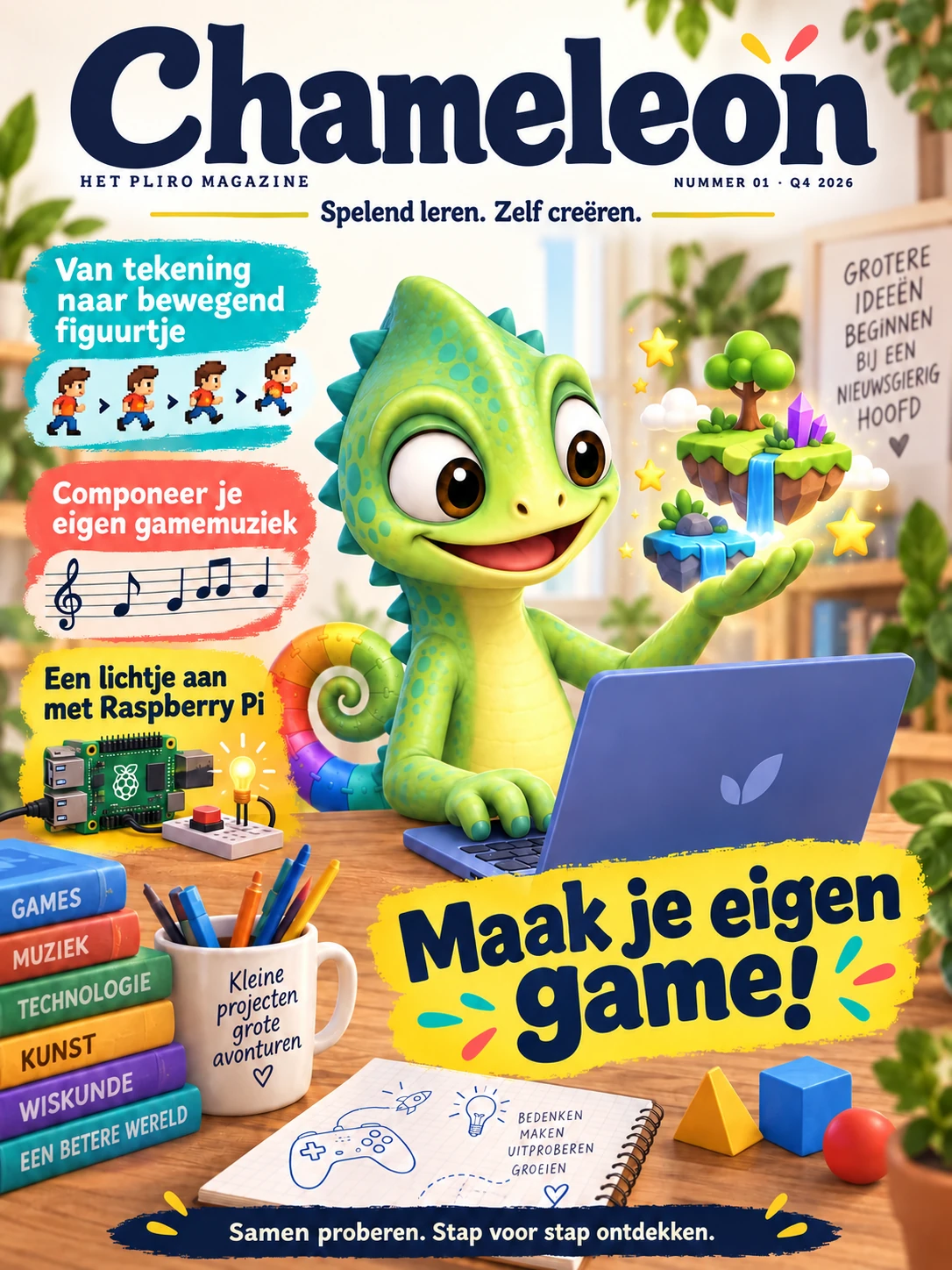
COMING SOON · A MAGAZINE IN DUTCH
Chameleon combines challenging Pliro projects, fun background facts and occasional accessible IT articles. Read together, try something and share what you have made. A standalone magazine subscription: in principle, all challenges use free Learner, with optional Creator Pro boxes for extras. Currently available in Dutch only.
Every two months · 6 issues a year · postage within the Netherlands included
Planned for January 2027
FOR THE NEXT BIG IDEA
For an original soundtrack, an animation with just the right timing or a useful app. Creator Pro gives makers visual editors and extra tools to finish their ideas.
Ordinary games, drawings and melodies remain free. Choose Pro when you want visual editors or the advanced development tools.
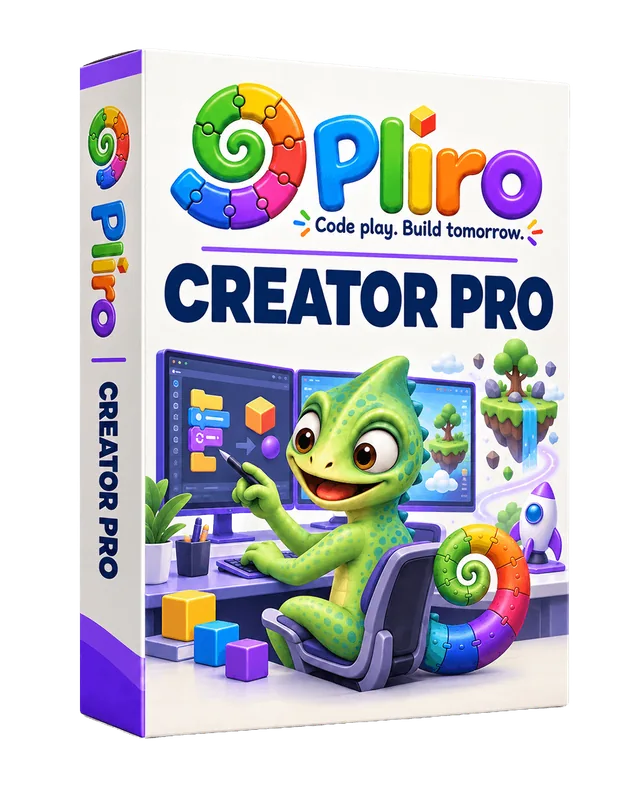 Buy Creator Pro
Extra tools for more ambitious projects.
Animation timelines, the form designer and a composer with multiple music tracks.
Breakpoints, stepping through functions, watches, repeatable tests and a source profiler.
SQLite, selected files, broader web integrations and commercial authoring rights with paid Pro.
Sold through Logicos Software Licensing
IDEAS AND GUIDANCE
Find out what children can practise through coding, how to help them and what the research says. Each guide includes an activity to try.
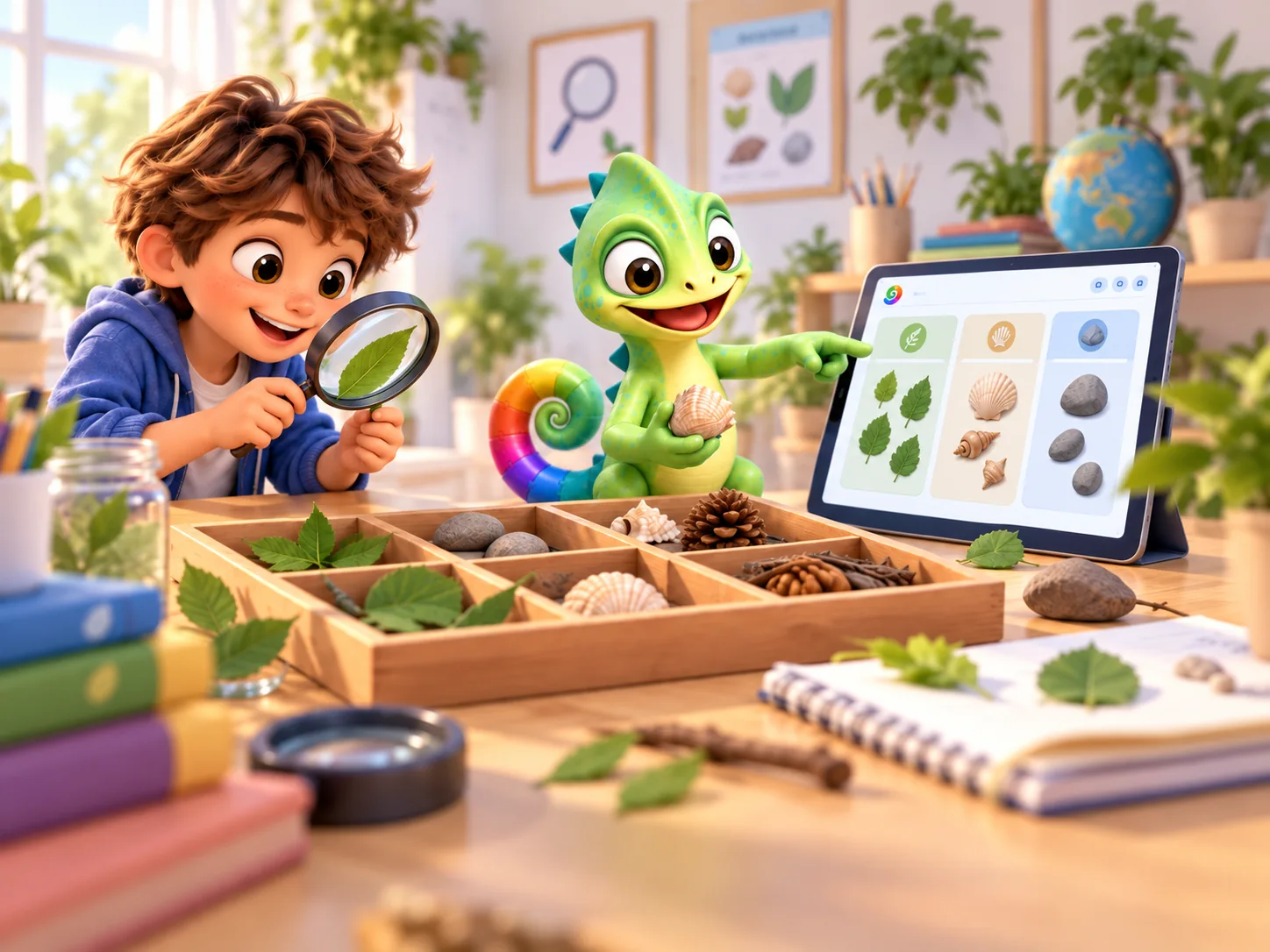
FOR FAMILIES · LEARNING THROUGH CODING
See how coding gives children a chance to solve problems, use their imagination and learn from mistakes. Try a simple activity together.
Read the guide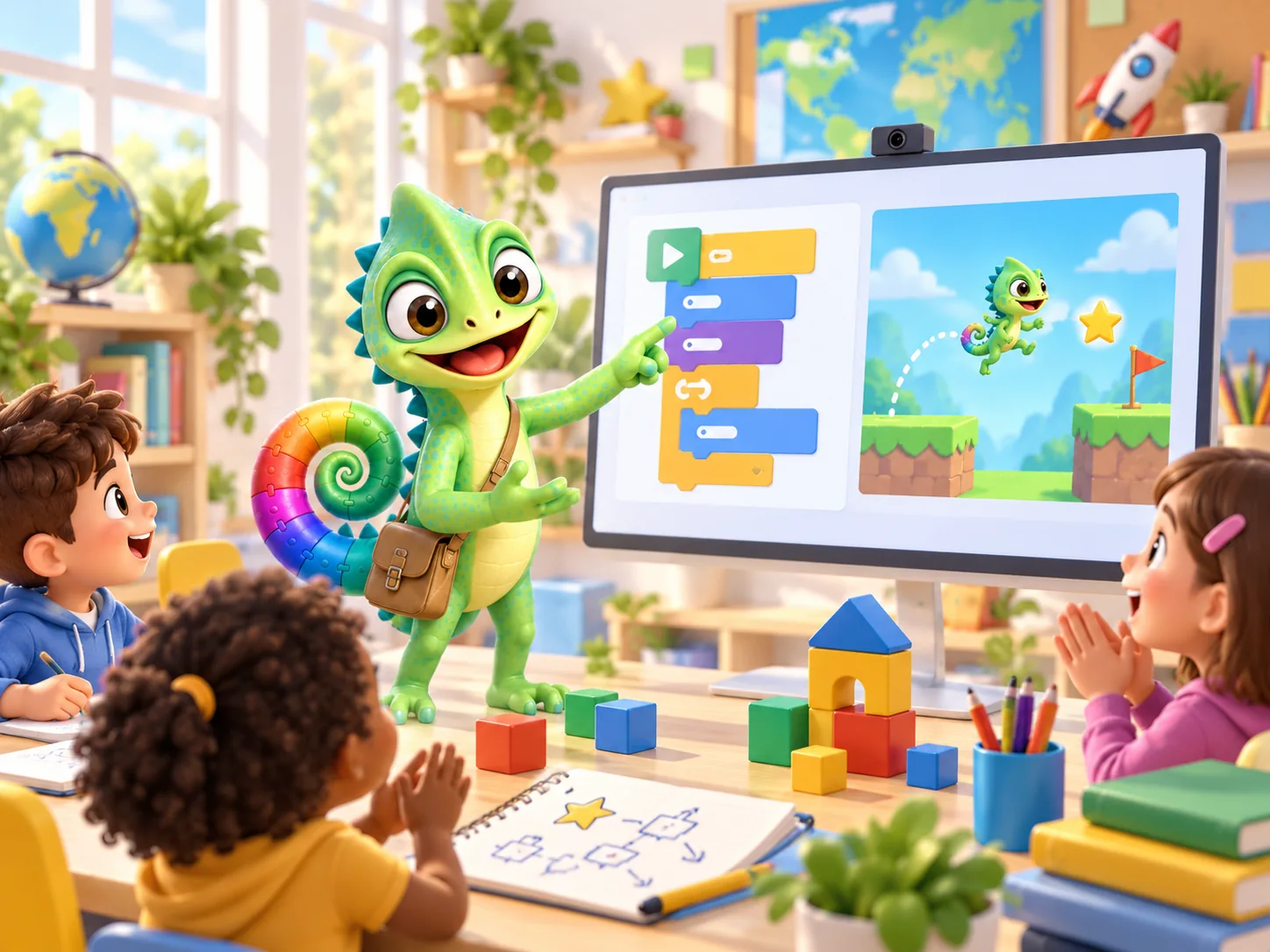
FOR TEACHERS · PLANNING A LESSON
Plan a manageable first coding lesson. Use prediction, discussion and small changes to help pupils understand what their programs do.
Read the guide
FOR FAMILIES & TEACHERS · SKILLS FOR EVERYDAY LIFE
Explore how coding connects with art, music and maths, and gives children a chance to question ideas from computers and AI.
Read the guidePRACTICAL QUESTIONS
Yes. Your child can use English instructions from the start. They choose their own names and text for their projects. The app also supports Dutch, but you do not need to speak it.
No. Open an example, ask your child what they think will happen and try a change together. The getting-started guide can help. It is fine to say, ‘I do not know — let’s find out.’
No. Free Learner includes drawing, 2D games and the supported ways to turn projects into programs. Creator Pro adds tools for more advanced apps. Check the current features before deciding whether you need it.
Yes. Save projects on your computer and keep a spare copy somewhere safe. Your child can open and edit their work with an active free Learner licence, even after a paid licence has ended.
Start with what they enjoy. Draw a character and make it move, or write a short tune using notes on a stave: the five lines used to write music. There is no need to make a whole game.
More step-by-step school projects are planned. The existing printable teaching kit and Chameleon magazine are in Dutch. The magazine is planned for January 2027 with current subscription prices in the shop. You can subscribe now through the Dutch website, without a Creator Pro licence.